
🌐 What Is a Proxy Port and How to Find Your Proxy Server in a Browser
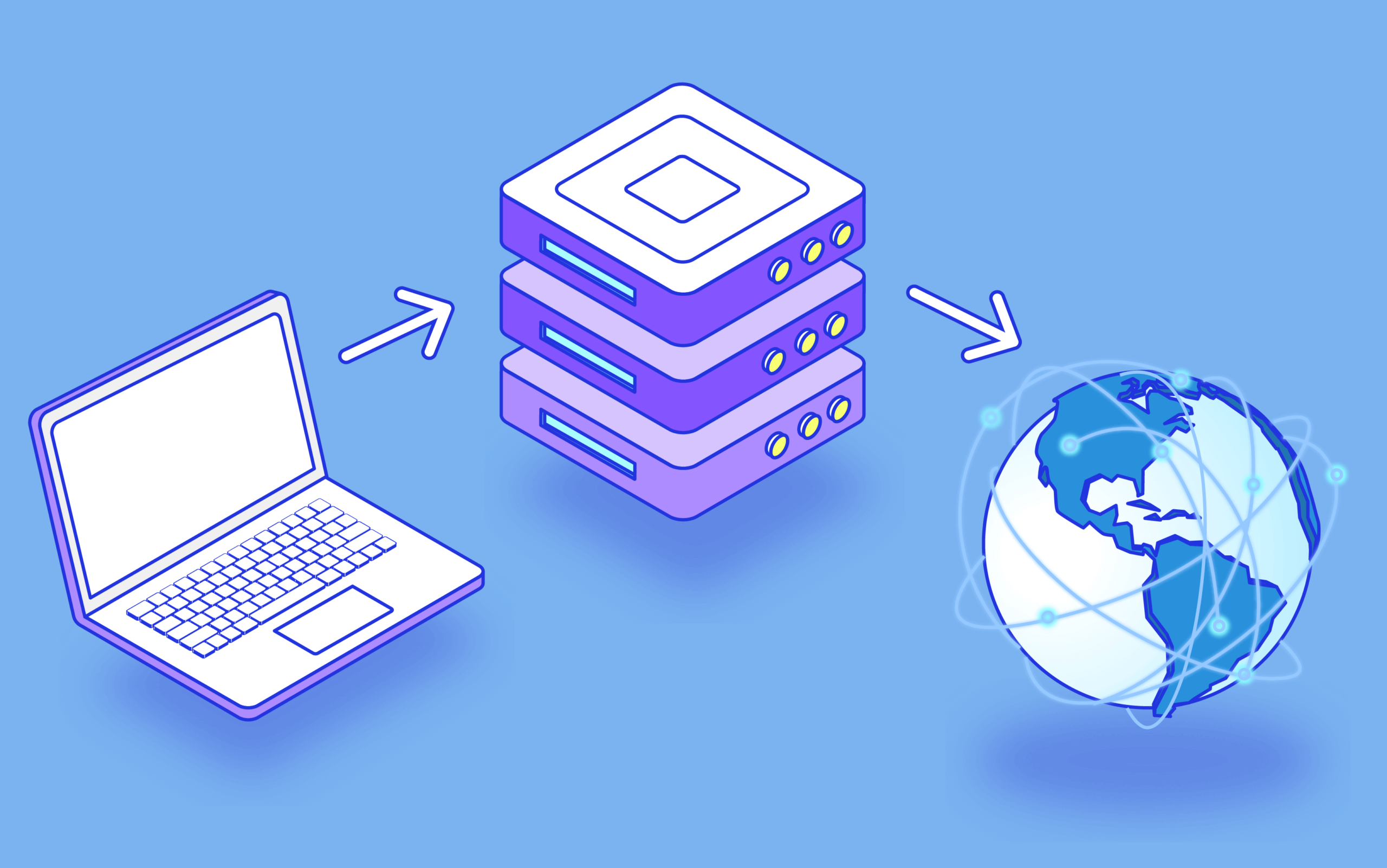
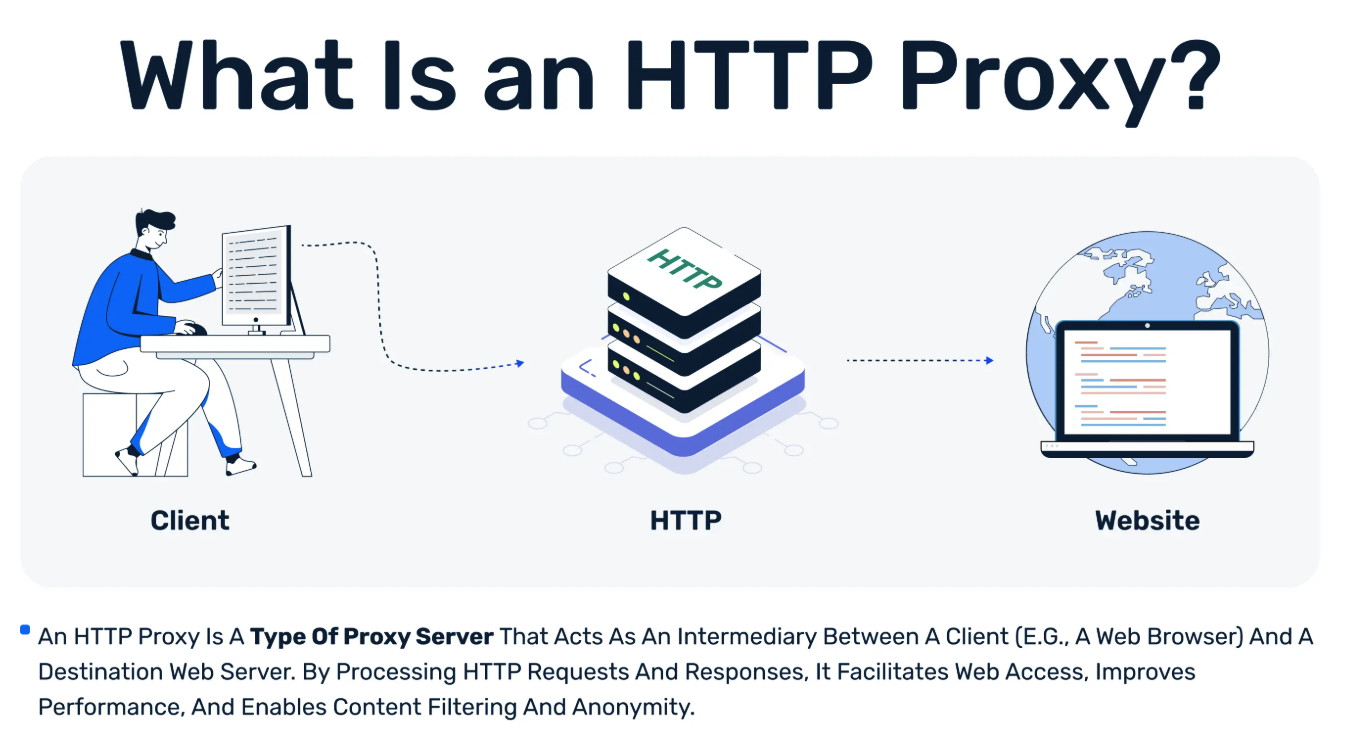
Have you ever opened network settings, seen an unfamiliar address followed by a number, and wondered what port and proxy actually mean for your connection? A proxy server sits between your device and the destination on the internet, forwarding requests according to its configuration, while the proxy address identifies the server and the port directs traffic to the appropriate network service. Once I understood this simple relationship, troubleshooting browser connections became much less mysterious.
I see proxy configuration as one of those technical subjects that looks more complicated than it really is. The difficult part is usually not entering the settings but knowing where the browser obtains them, which values matter, and whether the browser uses its own configuration or the operating system settings. Mozilla documents dedicated connection settings in Firefox, while Microsoft provides system-level proxy controls in Windows.
In this guide, I will explain how proxy addresses and ports work, where to find them in popular browsers and operating systems, how common configurations differ, and what I personally check when a proxy refuses to connect. I will also compare the most practical configuration methods so you can decide whether manual setup, system settings, or automatic configuration makes more sense for your situation.
🔌 What Is a Proxy Address and Proxy Port?
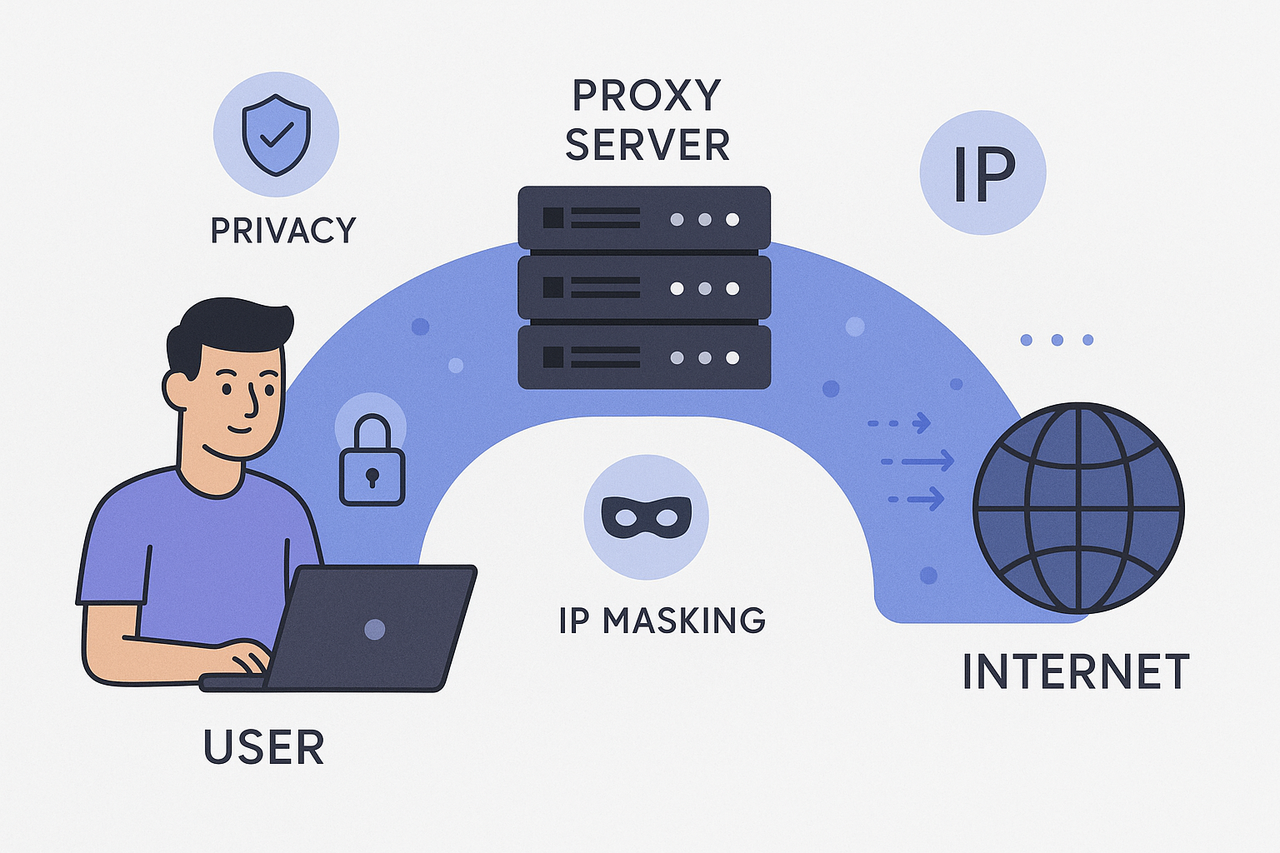
A proxy address is the IP address or hostname that tells your device where the proxy server can be reached. A proxy port is the numerical endpoint used by a particular network service on that host. Together they can appear in a format such as proxy.example.com:8080, although the exact address and port are supplied by the network administrator or proxy provider.
Ports are not arbitrary labels. According to the official IANA Service Name and Transport Protocol Port Number Registry, valid TCP and UDP port numbers range from 0 to 65535, divided into System Ports (0–1023), User Ports (1024–49151), and Dynamic/Private Ports (49152–65535). IANA registers TCP port 8080 as http-alt, or HTTP Alternate, which explains why users frequently encounter 8080 in web-related configurations.
A port number alone does not tell you that a server is a proxy. It identifies an endpoint for a service; the actual role of that endpoint depends on what software and configuration are running behind it.
🧭 Why Both Values Matter
When I diagnose a failed proxy connection, I always verify the address and port separately. A correct server with an incorrect port can be just as unusable as a completely wrong hostname, because the client may reach the machine but not the intended service. This is why copying proxy credentials carefully matters before changing browser or operating-system settings.
| Configuration element | Example | Purpose | Importance |
|---|---|---|---|
| Proxy address | proxy.example.com |
Identifies the server | ⭐⭐⭐⭐⭐ |
| Proxy port | 8080 |
Identifies the service endpoint | ⭐⭐⭐⭐⭐ |
| Protocol | HTTP / HTTPS / SOCKS | Defines connection handling | ⭐⭐⭐⭐⭐ |
| Authentication | Username + password | Controls authorized access | ⭐⭐⭐⭐ |
🧭 How to Find Your Proxy Server in a Browser
Finding a proxy is really about identifying where your browser gets its network configuration. Firefox can expose its own connection settings, while Safari on macOS leads you to the operating system’s proxy controls. I always check whether the setup is manual, system-based, or automatic before changing anything, because the browser may simply inherit settings managed elsewhere.
🦊 Checking Proxy Settings in Firefox
In Mozilla Firefox, open Settings → General → Network Settings → Settings. Mozilla documents options including No proxy, Auto-detect proxy settings, Use system proxy settings, Manual proxy configuration, and an automatic proxy configuration URL. If Manual proxy configuration is active, the server address and port can be displayed directly there.
🍎 Finding a Proxy in Safari on Mac
Apple directs Safari users to Safari → Settings → Advanced → Change Settings beside Proxies. This opens macOS Network settings, where the path is Network → selected service → Details → Proxies. For me, this is an important distinction: Safari does not require you to hunt for a separate hidden browser-only proxy menu when the configuration is managed by macOS.
| Platform | Where I check | Typical configuration source | Rating |
|---|---|---|---|
| Firefox | Network Settings | Browser or system | ⭐⭐⭐⭐⭐ |
| Safari / macOS | Network → Proxies | macOS | ⭐⭐⭐⭐⭐ |
| ChromeOS | Network proxy settings | Device or policy | ⭐⭐⭐⭐ |
Google’s ChromeOS documentation also confirms support for proxy configuration, including organizational deployments. The lesson I keep in mind is simple: not every browser stores an independent proxy address and port, so finding the correct values sometimes means checking the operating system rather than the browser itself.
🔍 Before Changing a Proxy
- Check whether configuration is manual or automatic.
- Confirm the exact address, port, and required protocol.
- Determine whether the setting belongs to the browser or the whole device.
Those three checks usually save more time than repeatedly changing random ports.
⚙️ Manual Proxy, System Proxy, or Automatic Configuration?
Choosing the right configuration method matters more than choosing a familiar-looking port. Firefox supports manual settings, system proxy settings, automatic detection, and automatic proxy configuration URLs, while macOS provides HTTP, HTTPS, SOCKS and automatic proxy configuration options at the network level. In my experience, manual configuration is easiest to understand because every important value is visible, but automatic configuration is often more practical when many devices must follow centrally maintained rules.
| Method | Best suited for | Main advantage | My rating |
|---|---|---|---|
| Manual proxy | Personal setups, testing | Address and port are explicit | ⭐⭐⭐⭐⭐ |
| System proxy | Multiple applications | One central device configuration | ⭐⭐⭐⭐⭐ |
| PAC configuration | Managed networks | Rules can select proxies automatically | ⭐⭐⭐⭐ |
| Auto-detection | Compatible managed environments | Less manual setup | ⭐⭐⭐ |
🎯 Which Proxy Setup Would I Choose?
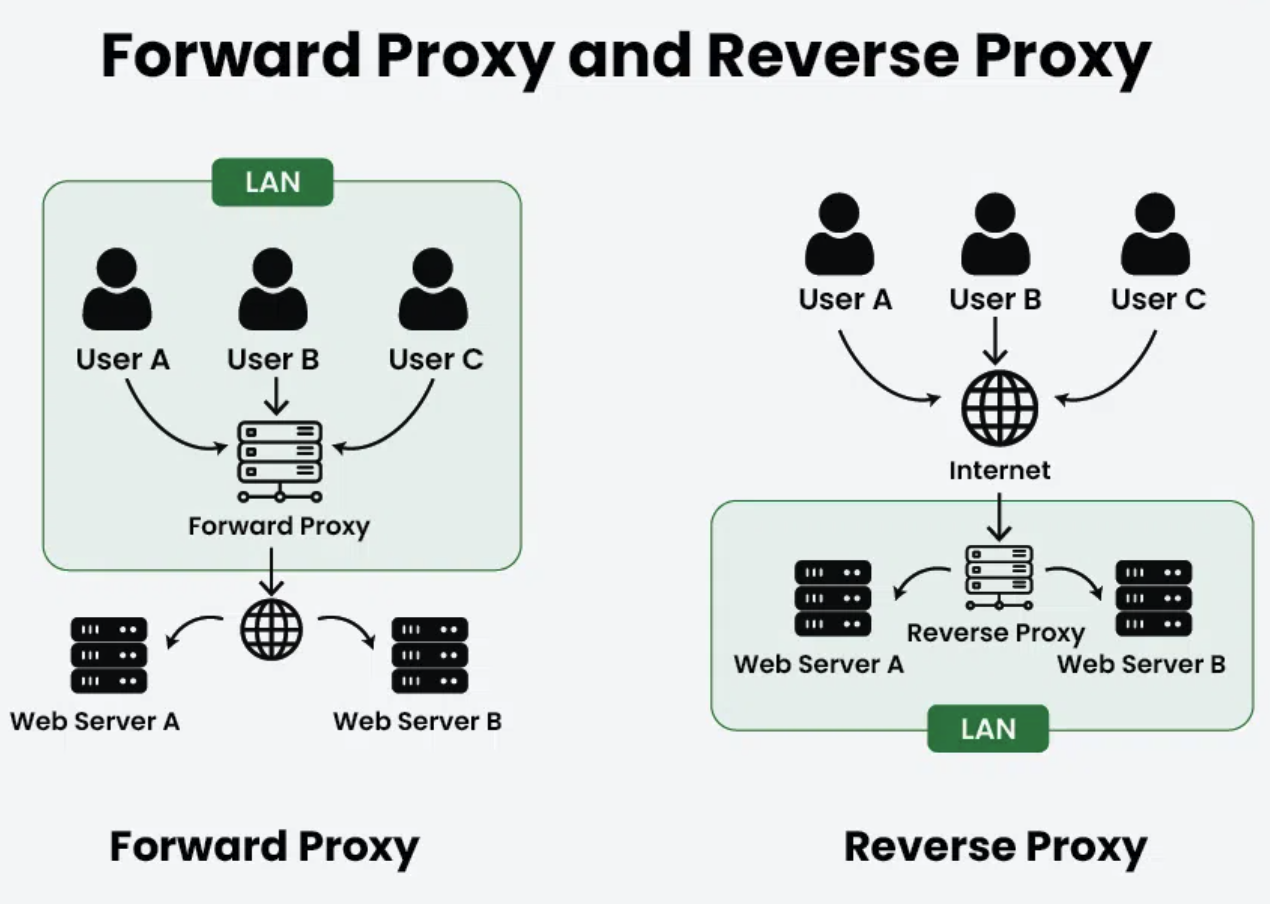
For occasional browser testing, I prefer a manual proxy because it makes troubleshooting transparent. If several applications should use the same route, system-level settings are usually cleaner; Safari, for example, opens the macOS Network proxy configuration rather than maintaining a completely separate proxy panel. For managed ChromeOS environments, Google documents proxy configurations that administrators can apply through organizational policies, making centralized deployment more practical at scale.
| Use case | My preferred approach | Why |
|---|---|---|
| Testing one browser | Manual configuration | Easy to inspect and change |
| Several apps on one Mac | System proxy | Shared network configuration |
| Organization-managed devices | Managed/PAC setup | Easier centralized control |
| Frequent troubleshooting | Manual first | Values remain clearly visible |
🛠️ What to Check When a Proxy Does Not Work
A failed connection does not automatically mean the proxy server itself is offline. I first compare the hostname, port, protocol, authentication details, and configuration source, then test whether the browser is actually using the settings I changed. I also avoid assuming that 8080 means “proxy”: IANA officially registers TCP 8080 as HTTP Alternate, so the service actually listening there still depends on the server configuration.
- Recheck the proxy address and port for typing errors.
- Confirm whether authentication credentials are required.
- Verify that the correct HTTP, HTTPS, or SOCKS setting is being used.
- Check whether a system or organizational policy overrides browser settings.
These checks give me a much clearer diagnosis than cycling through random port numbers, and they reduce the risk of accidentally replacing a valid configuration.
⁉️🤔 Popular Questions and Answers
- What is a proxy port?
A proxy port is the numerical endpoint used by a proxy service on a server. Together with the proxy address, it tells your browser or application exactly where to send traffic.
- How do I find my proxy server address?
Check your browser or operating-system network settings. In Firefox, proxy information can appear under Network Settings; on macOS, Safari directs you to the system Proxies configuration.
- Is port 8080 always a proxy port?
No. IANA registers 8080 as HTTP Alternate, but a server can run different services on that port. The actual purpose depends on the software listening there.
- Can a proxy work without a port?
A network connection still needs a destination port. Some applications hide it by using a default value, but the connection ultimately targets a specific port.
- What is the difference between HTTP and SOCKS proxies?
HTTP proxies are designed around web traffic, while SOCKS proxies operate at a lower level and can carry a wider variety of application traffic. The best option depends on the software and task.
- Why can’t I see proxy settings in my browser?
Your browser may be using operating-system settings instead of storing its own configuration. Organizational policies can also manage or restrict these settings.
- What should I check if my proxy stops working?
I would verify the address, port, protocol, credentials, and whether another system or policy is overriding the configuration. Testing each item separately usually reveals the problem faster.
- Is a proxy the same as a VPN?
No. A proxy usually forwards traffic for a specific application or configured connection, while a VPN commonly creates an encrypted network tunnel for broader device traffic.
💎 Summary and Conclusions
A proxy address and port are two parts of the same connection: the address identifies the server, while the port identifies the service endpoint your device should contact. Once you understand that relationship, browser proxy configuration becomes much easier to inspect, troubleshoot, and verify.
For me, the most important rule is not to guess. Check whether the browser uses its own settings or inherits them from the operating system, confirm the exact protocol and credentials, and avoid assuming that a familiar port number automatically identifies a proxy. Manual settings are excellent for testing and troubleshooting, while system-level or automatic configurations are usually better for environments where several applications or managed devices must follow the same network rules.